Everything, from stick to desktop
How to write hyppuccin to a USB stick, try it, install it, and live with it afterwards: the desktop, the shortcuts, Settings, themes, updates, and what to do when something goes sideways.
What hyppuccin is
hyppuccin is Arch Linux with a Hyprland desktop that's already set up: a floating bar with click-to-open drawers, an app drawer, notifications, a lock screen that doubles as the login screen, a Settings app, 100 colour themes and five wallpapers. One file, rice.toml, styles every part of it.
Underneath it's plain Arch: Arch's own repositories, pacman, the Arch kernel. Everything on the Arch Wiki applies. It isn't better or worse than any other distro; it's a distro, and that's it (the honest part says more).
What's on the ISO
- The hyppuccin desktop: Hyprland, Waybar and its drawers, rofi, swaync, swayosd, hyprlock, greetd, a Plymouth boot splash, fonts and icons.
- Three apps: kitty (terminal), neovim (editor) and paru (for the AUR). Nothing else: your browser, file manager, office suite and the rest are your choice.
- Graphics drivers for AMD, Intel and NVIDIA (the open NVIDIA driver, for GeForce 16, RTX 20 and newer). The installed system keeps only the drivers your computer uses.
- The Calamares installer, which installs without internet and then removes itself.
What it doesn't do
- No suspend. Idle dims, locks and turns the screens off, and closing the lid locks, but the computer doesn't go to sleep (see why).
- No Secure Boot. The ISO and the boot loader aren't signed.
- No CD or DVD. The ISO is made for USB sticks.
- No extra repositories, no tracking, no location lookup. The installer doesn't even guess your time zone from your IP address.
Before you start
What you need
| Part | Needed |
|---|---|
| Computer | 64-bit (x86_64), UEFI or BIOS |
| Memory | 2 GB of RAM; 4 GB or more is more comfortable |
| Disk | 20 GB (the system takes about 8 GB, the rest is room to live in) |
| Graphics | Anything with working 3D: AMD, Intel, NVIDIA GeForce 16 / RTX 20 and newer. Older NVIDIA cards use the nouveau boot entry. |
| USB stick | 4 GB or more. Everything on it is erased. |
| Internet | Only to download the ISO and, afterwards, for updates. The install itself is offline. |
Turn Secure Boot off
The ISO and the GRUB boot loader aren't signed, so a computer with Secure Boot on refuses to start them. Open your firmware setup (often F2, Del or Esc while the computer starts), find Secure Boot (usually under Security or Boot) and turn it off.
Back up
Installing can erase a whole disk, and writing the ISO erases the USB stick. Copy anything you want to keep somewhere else first.
Download and write a USB stick
Download
Get the ISO from the download section: hyppuccin-….iso, 2.4 GB. The file name carries the date it was built.
Check the download
A broken download makes for strange errors later, so compare its checksum with the one on the download page (published with the download):
$ sha256sum hyppuccin-*.iso                    # Linux
$ shasum -a 256 hyppuccin-*.iso                # macOS
> certutil -hashfile hyppuccin-….iso SHA256   # Windows
On Linux
Find the stick's device name, then write the ISO to the whole device (/dev/sdb, not a partition like /dev/sdb1):
$ lsblk                                  # which one is the stick? check the size
$ sudo dd if=hyppuccin-*.iso of=/dev/sdX bs=4M status=progress oflag=sync
dd writes to whatever you name, without asking. Double-check /dev/sdX: the wrong letter erases the wrong disk. GNOME Disks (Restore Disk Image) does the same with a window.
On Windows
Use Rufus: pick the stick and the ISO, press Start, and when it asks how to write the image, choose DD Image mode. balenaEtcher works too and asks nothing.
On macOS
$ diskutil list                          # find the stick: /dev/diskN
$ diskutil unmountDisk /dev/diskN
$ sudo dd if=hyppuccin-….iso of=/dev/rdiskN bs=4m
With Ventoy
Already have a Ventoy stick? Copy the ISO onto it like any file and pick it from Ventoy's menu at boot.
Boot and try it
Start from the stick
Plug the stick in and switch the computer on while pressing its boot-menu key. Which key depends on the maker: F12, F11, F8 or Esc are common. Pick the USB stick (on UEFI computers it may be listed as UEFI: …).
The boot menu
| Entry | When |
|---|---|
| hyppuccin live | Almost always. Starts after a few seconds on its own. |
| hyppuccin live, older NVIDIA cards (nouveau) | NVIDIA cards older than GeForce 16 / RTX 20, or when the first entry ends in a black screen. |
| Memtest86+ | Tests the computer's memory. Takes a while. |
The live session
The stick starts straight into the desktop, as the user hyppuccin. Nothing is installed yet, and nothing you do here touches your disk until you run the installer.
- The live user has no password: if the screen locks, Enter unlocks it.
sudodoesn't ask for one either. - The installer opens by itself. Closed it? SUPER Space, then Install hyppuccin.
- Try things: SUPER Return opens a terminal, SUPER / lists every shortcut, SUPER C opens Settings, where you can switch themes. Wi-Fi is in the bar, on the right.
SUPER is the key with the Windows (or ⌘) logo on it. Every shortcut in hyppuccin starts with it.
Install
The installer is Calamares. It asks its questions first and changes nothing until you confirm the summary. On a laptop, plug in the charger.
Screen by screen
Welcome
The installer's language. It also checks the basics: 20 GB of disk, 2 GB of RAM, power plugged in.
Location
Your time zone, picked on the map (it starts at London; nothing is looked up online), and the language and formats of the system.
Keyboard
Your layout. Type in the test box to check it. The desktop uses the same layout; add more later in Settings → Input devices.
Partitions
Where it goes: a whole disk, next to another system, or your own partitions. More below.
Users
Your name (shown on the lock screen), login name, computer name and password. You become an admin through sudo; the root account stays locked.
Summary
Everything it's about to do. Last chance to go back: nothing has changed yet.
Install
It copies the live system to the disk (no internet needed), keeps only the drivers your computer uses and sets up your desktop. A few minutes.
Done
Restart, and pull the USB stick out when the screen goes dark.
Disk choices
- Erase disk is the simplest: the installer makes the partitions itself. By default the system uses btrfs with zstd compression and the subvolumes
@,@home,@cacheand@log, plus a swap file. ext4 and xfs are there too. - Install alongside appears when the disk already holds another system and has room. The boot menu then lists both (GRUB looks for other systems). Erasing a disk is the path that's been tested most, so back up before you try this.
- Manual partitioning if you know exactly what you want. UEFI computers need an EFI system partition.
Encryption
Tick Encrypt system on the partitions screen and choose a passphrase. The boot loader asks for it every time the computer starts.
hyppuccin logs you in by itself and then shows the lock screen, so the password protects the session, not the disk. On a laptop that could be lost or stolen, turn encryption on.
If the install fails
The installer shows what went wrong. Everything it did is written to /var/log/hyppuccin-install.log on the installed system. That log is what to attach when you ask for help.
First boot
Logging in
The boot menu waits three seconds, the boot splash plays (the steaming mug and a wave of coloured dots), and then the lock screen appears with your name and the clock. Type your password: that's the login.
Behind the lock, the desktop is already running. That's why it opens instantly, and why a crash or restart always comes back locked.
Get the updates
The ISO is a snapshot from the day it was built. Bring everything up to date first:
SUPER U opens a terminal that lists what's new and asks before updating (it runs paru -Syu, which covers Arch's repositories and the AUR). The same from any terminal: sudo pacman -Syu.
Install your apps
$ sudo pacman -S firefox dolphin    # from Arch's repositories
$ paru -S some-aur-package          # from the AUR
The app drawer only shows the apps you've chosen, so a new app doesn't appear by itself. Open Settings → Launcher and switch it on. SUPER E opens Dolphin once it's installed.
A few personal bits
- Weather: Settings → Weather, your city and units (it starts with London).
- Your picture and name on the lock screen: Settings → User.
- Keyboard layouts and the shortcut to switch between them: Settings → Input devices.
- Screens: Settings → Displays: resolution, refresh rate, scale, which screen is the main one.
- The clock drawer's time zones (labelled London and Tokyo to start with):
ZONESin~/.hyppuccin/waybar/scripts/clockpanel.py.
The desktop
The bar
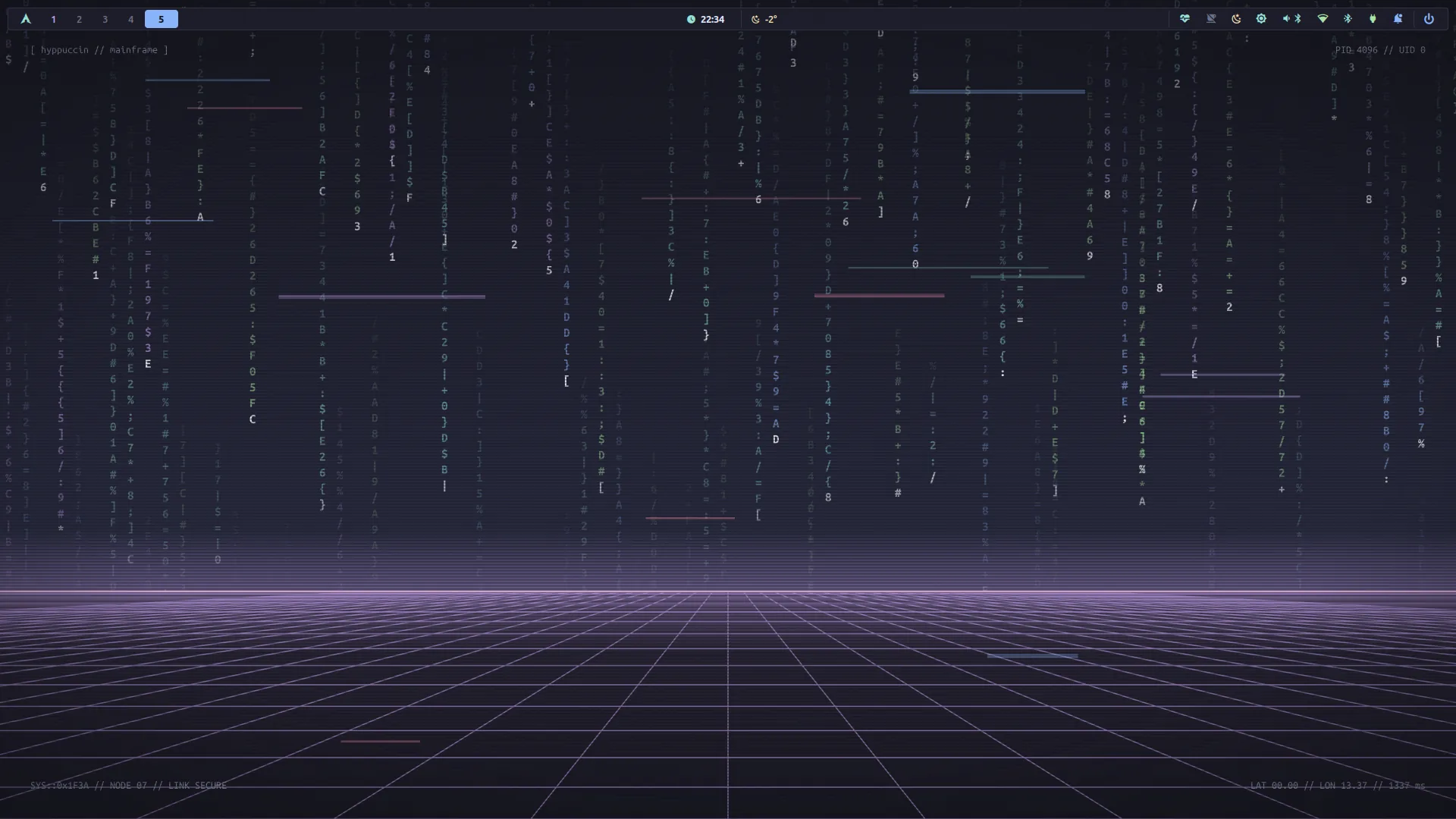
- Left: workspaces. 1 to 5 are always there; 6 to 10 appear while they're in use. The current one is filled with its tiling layout's colour. Click a number to go there; click the current one to change its layout.
- Middle: the clock and the weather. Click the clock for a calendar and a second time zone, the weather for the forecast.
- Right: status icons. Only icons show; hover one and its value slides out. Click it for its drawer. Icons you rarely need can wait behind a ‹ button, or disappear: Settings → Bar.
- When updates are waiting, an updates icon shows with the count. It hides itself when there's nothing.
Drawers
Each status icon opens a drawer under the bar: Wi-Fi (and VPN), Bluetooth, sound (outputs, inputs, per-app volume), media (what's playing), battery (and power mode), brightness, night light, weather, clock, updates and system health (CPU, memory, graphics, temperatures, disks, the busiest processes). Click anywhere else to close it.
App drawer and menus
- SUPER Space: the app drawer. Type to filter, Enter to start. Its order (most used, A to Z, or your own) is in Settings → Launcher.
- SUPER = calculator, SUPER . emoji, SUPER Shift V clipboard history, SUPER W wallpaper picker.
- SUPER Esc: the power menu: lock, log out, reboot, shut down.
Notifications
Notifications pop up top right. SUPER N (or the bell in the bar) opens the notification centre with the ones you missed and a do-not-disturb switch.
Lock, idle and power
- SUPER L locks. So does closing the lid.
- When you're away: after 5 minutes the screen dims, after 10 it locks, after 15 the screens turn off. Change it in Settings → Power, or stop it for a while with Keep awake.
- There's no suspend; here's why.
Screenshots
Print takes a region, Shift Print a window, Ctrl Print the whole screen. They're saved to ~/Pictures/Screenshots and copied to the clipboard. Alt Print only copies; SUPER Print opens the region in an editor to draw on it first.
Little helpers
- Focus mode (SUPER Z): no bar, no gaps, no notifications. Press again to come back.
- Scratchpad (SUPER S): a hidden workspace that slides over the current one. SUPER Shift S sends a window there.
- Quick note (SUPER Shift N): a floating neovim for a quick thought.
- VPN check (SUPER D): whether your VPN is up and your DNS isn't leaking.
- Night light: warmer colours in the evening, from its drawer or Settings → Night light.
- Zoom (SUPER Alt = / -): magnifies around the pointer; SUPER Alt 0 resets.
Keyboard shortcuts
These are the defaults. SUPER / shows the ones in use, searchable, and Settings → Keyboard changes any of them: click one, press the new keys.
Apps and session
Windows
Workspaces
Tools
Screenshots
Accessibility
Media keys
Tiling layouts
Windows arrange themselves; each workspace picks one of Hyprland's three layouts:
dwindle
Each new window splits the space of the current one in two. The default.
master
One big window on one side, the rest stacked next to it.
scrolling
Windows as columns on a strip that scrolls sideways, as wide as you like.
Switching
Click the current workspace's number in the bar, or press SUPER T. The choice is remembered per workspace.
SUPER J does each layout's main move: dwindle swaps the split direction, master swaps the focused window with the big one, scrolling cycles the column width (⅓, ½, ⅔, full). The bar colours each workspace by its layout, so you can see which one you're in. The default layout, the colours and the order are in rice.toml under [tiling].
The Settings app
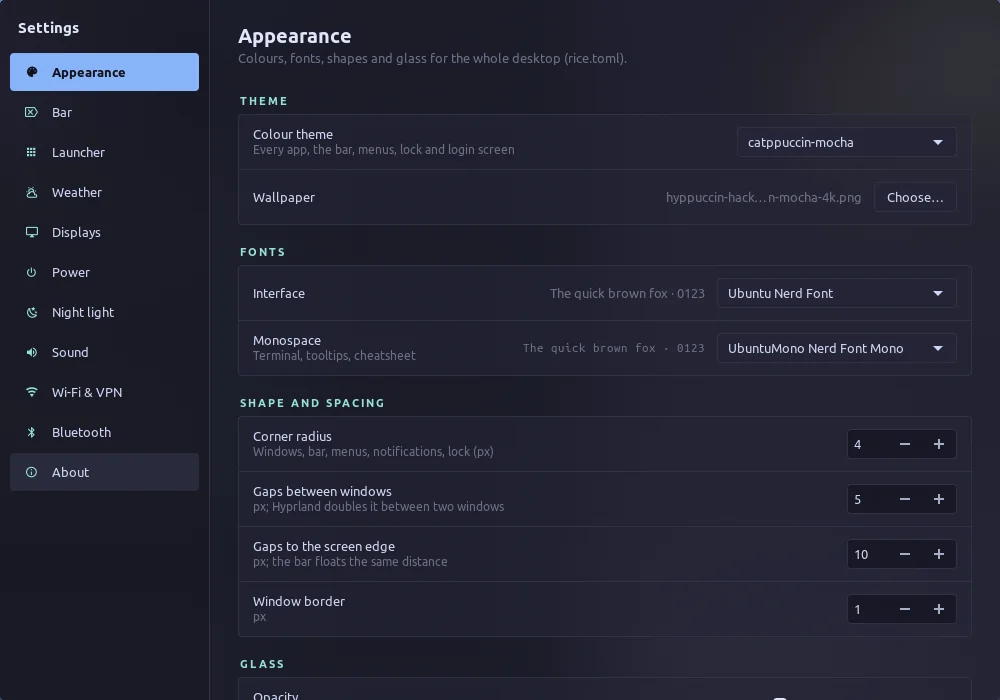
SUPER C, the tune icon in the bar, or Settings in the app drawer. Changes apply right away; the ones that belong to the desktop's look are saved in rice.toml, so the app and a hand edit always agree.
| Page | What it changes |
|---|---|
| Appearance | Colour theme, wallpaper, interface and monospace fonts, text size of GTK and Qt apps, corner radius, gaps, window border, how see-through and blurred the glass is |
| Theme maker | A theme of your own from ten colours, with a live preview and contrast warnings |
| Bar | Height, text size, 24-hour clock, seconds; per icon: show, behind the ‹ button, or hide |
| Launcher | Which apps the app drawer shows, your own entries for any command, and the drawer's order |
| Keyboard | Every shortcut: click one, press the new keys; Esc cancels, Backspace turns it off. A combination that's taken offers to take it over |
| Weather | City and units |
| Displays | Resolution, refresh rate, scale and adaptive sync per screen (reverted after 15 seconds unless you keep it), the main screen, the laptop screen next to an external one, brightness |
| Input devices | Keyboard layouts, Caps Lock, key repeat; pointer speed and acceleration, per mouse too; touchpad tapping and scrolling; the cursor theme |
| Accessibility | Text size, cursor size, less motion, zoom step, the screen reader and the on-screen keyboard |
| Power | Power mode, battery health, keep awake, the idle timers; lock, log out, reboot, shut down |
| Security | The firewall (ufw) and the virus scanner (ClamAV), when they're installed; otherwise it says which package to install |
| Graphics | Your graphics card(s), which one runs the desktop, load and temperature, driver details; NVIDIA extras |
| Night light, Sound, Wi-Fi & VPN, Bluetooth | The same controls as the bar's drawers, as full pages |
| User | Your picture and full name (shown on the lock screen), account details, your password |
Settings never installs software. When a feature needs a package, it tells you which one (sudo pacman -S …) and you decide.
Themes and looks
Switching themes
Settings → Appearance → Colour theme, or in a terminal:
$ rice theme                    # list them, * marks the active one
$ rice theme rose-pine-moon      # switch
Everything follows at once: Hyprland's borders, the bar and drawers, menus, notifications, kitty, GTK and Qt apps, the lock screen and the boot splash. A light theme also switches GTK, Qt and the icons to light. Try a few on this page: it uses the same theme files.
| Family | Dark | Light |
|---|---|---|
| Catppuccin | Mocha (default), Macchiato, Frappé | Latte |
| Tokyo Night | Night, Storm, Moon | Day |
| Kanagawa | Wave, Dragon | Lotus |
| Rosé Pine | Main, Moon | Dawn |
| Nightfox | Nightfox, Duskfox, Nordfox, Terafox, Carbonfox | Dayfox, Dawnfox |
| Gruvbox | Dark, Material | Light, Material Light |
| Solarized, Selenized | Solarized Dark, Selenized Dark, Selenized Black | Solarized Light, Selenized Light, Selenized White |
| And more | Dracula, Nord, Everforest, One Dark, Flexoki, GitHub, Edge, Sonokai, Ayu, Iceberg, Melange, Zenbones, Modus Vivendi, Material, Night Owl, Tomorrow, Spacemacs, Vitesse, Monokai, Darcula, Doom One, Moonfly, Bamboo, Synthwave '84, Cyberdream, Oxocarbon, Poimandres and others | Alucard, Everforest, One Light, Flexoki, GitHub, Edge, Ayu, Iceberg, Melange, Zenbones, Modus Operandi, Material Lighter, Light Owl, Tomorrow, Light+, PaperColor and others |
The theme maker
Settings → Theme maker: start from any theme, then pick a background, a text colour, an accent and seven hues. The preview shows the bar, a window, every text level, buttons and terminal colours as you go, and warns when text gets hard to read. Every other shade is mixed for you, the same way the bundled themes are made. It saves to ~/.hyppuccin/themes/ and only ever replaces or deletes themes it made itself.
Wallpapers
Five 4K wallpapers come with hyppuccin, in ~/Pictures/wallpapers: space, hacker clean (the default), hacker, lo-fi and steam. SUPER W opens a picker with previews of everything in that folder, so your own pictures go there too. They're drawn from the theme's colours; after switching themes, draw them again in the new colours:
$ ~/.hyppuccin/tools/wallpaper.py --space # or --lofi, --hacker, --hacker-clean; none = steam
Glass, fonts, corners, gaps
All in Settings → Appearance, or in rice.toml: [glass] (how see-through the bar, drawers, menus, notifications and the terminal are, and how strong the blur), [font], [shape] (the corner radius everywhere) and [layout] (gaps and border). After a hand edit, run rice apply.
Keeping it up to date
Two kinds of updates, two commands.
The system: SUPER U
Packages come from Arch, so they update the Arch way. SUPER U (or a click on the bar's updates icon) shows what's waiting, asks, and runs paru -Syu: Arch's repositories and the AUR in one go. Afterwards it says whether a reboot is worth it. Update every week or two; Arch is a rolling release, and small steps are easier than big ones.
The desktop: hyppuccin update
The desktop's configuration lives in ~/.hyppuccin, a copy of the hyppuccin repository on GitHub. When hyppuccin gets fixes or new features, bring them in with:
$ hyppuccin update --check      # is there anything new?
$ hyppuccin update --dry-run    # what would it change, file by file?
$ hyppuccin update              # do it
It keeps what's yours:
- Your settings. Every value you changed in
rice.toml(by hand or through Settings) keeps your value. Settings you never touched follow hyppuccin's new defaults, and new settings arrive with theirs. - Your edits. A file you changed by hand is merged with the new version. Where you and hyppuccin changed the same lines, your file stays as it is and hyppuccin's version is set aside for you to look at.
- Your own files, like themes you made, are left alone. A file you deleted stays deleted.
- Your theme. The files rendered from your theme are drawn again afterwards, in your colours.
Anything it rewrites is saved first, in ~/.local/state/rice/update-<date>/ (yours/: your versions, hyppuccin/: the new versions you didn't get). When an update changes something that needs your password (new packages, the login screen, the boot splash), it ends with the command to run in a terminal.
If you make your own git commits in ~/.hyppuccin, hyppuccin update steps aside and leaves the merge to you: git -C ~/.hyppuccin pull --rebase --autostash.
Under the hood
~/.hyppuccin
The whole desktop is one folder in your home, and ~/.config/hypr, waybar, rofi, kitty and friends are links into it. There's one copy of every config, and you can read all of it.
| Path | What it is |
|---|---|
rice.toml | The lead file: theme, fonts, corners, gaps, glass, bar, idle timers, input, shortcuts and more |
themes/ | The colour themes, one file each, all with the same colour roles |
hypr/ | Hyprland (hyprland.lua), the lock screen, idle, wallpaper, and the scripts the shortcuts call |
waybar/ | The bar, its modules and the drawers |
rofi/, swaync/, swayosd/, kitty/ | Menus and the app drawer, notifications, the volume pop-up, the terminal |
settings/ | The Settings app |
greetd/, plymouth/ | Login and the boot splash |
wallpapers/, tools/ | The wallpapers and the scripts that draw them and the themes |
rice, hyppuccin, install.sh | The commands: theming, updates, (re)installing the desktop |
The rice command
| Command | What it does |
|---|---|
rice apply | Renders every app's theme files from rice.toml and the theme, then reloads what's running |
rice theme [NAME] | Lists the themes, or switches to one |
rice set SECTION.KEY VALUE | Changes one value in rice.toml, e.g. rice set layout.gaps_out 12 |
rice wallpaper [IMAGE] | Sets the wallpaper (a picker without IMAGE) |
rice check | Finds themes with missing colours and colours hardcoded where they shouldn't be |
rice doctor | Everything check does, plus Hyprland's config errors, every bar module, the drawers, the scripts and config paths |
rice greeter, rice plymouth | Print the sudo commands that install the login screen or the boot splash after you've changed them |
Changing things by hand
Edit rice.toml or a theme, then run rice apply. Files that start with GENERATED by rice apply are rendered from a .tmpl next to them: edit the template, not the file. Anything else (Hyprland's rules, a bar module, a script) you can just edit; hyppuccin update will merge around your changes.
Want hyppuccin's original version of a file back?
$ git -C ~/.hyppuccin restore hypr/hyprland.lua
Optional extras
install.sh sets up the desktop, and a few extras on request. It's safe to run again: it skips what's already done, backs up what it replaces, and updates the system on the way.
Printing
~/.hyppuccin/install.sh --with-printing adds CUPS and network printer discovery. Settings then shows a Printing page: add a printer, set the default, print a test page.
Firewall and virus scanner
Install ufw or clamav with pacman, and Settings → Security manages them.
Claude apps
install.sh --with-ai adds claude.ai and Claude Code in their own themed windows (SUPER A, SUPER Shift A). Unofficial: not made by or affiliated with Anthropic; you need your own account.
More of your own
Anything from Arch's repositories or the AUR. Then Settings → Launcher to show it in the app drawer.
Troubleshooting
The stick starts, then the screen stays black
Most often an older NVIDIA card. Restart and pick hyppuccin live, older NVIDIA cards (nouveau) in the boot menu. Hyprland needs working 3D, so very old graphics may not work at all.
The stick doesn't start, or says "Secure Boot violation"
Turn Secure Boot off. If the stick isn't offered at all, write it again (on Windows: Rufus in DD Image mode) and check the checksum.
In a virtual machine
Hyprland needs 3D acceleration. QEMU/KVM with virtio-vga-gl and a GL display works (in virt-manager: Video: Virtio with 3D acceleration, and Display Spice: OpenGL). Without 3D, the desktop won't start.
An app I installed isn't in the app drawer
On purpose: the drawer shows only the apps you pick. Settings → Launcher, switch it on.
Where's Suspend?
Turned off. On the machine hyppuccin was made on (NVIDIA and a dock), the screen stays black after waking up, and a computer that might not come back is worse than one that doesn't sleep. Instead, idle locks the screen and turns it off, and closing the lid locks. If suspend works on your hardware: the setting that stops it is /etc/systemd/logind.conf.d/rice.conf.
After an edit, the desktop won't start
A crashed desktop restarts by itself, still locked (in safe mode if the config is broken). If it keeps failing, press Ctrl Alt F2 for a text console, log in, and undo the edit, or put hyppuccin's version back:
$ git -C ~/.hyppuccin status                 # what did I change?
$ git -C ~/.hyppuccin restore hypr/hyprland.lua
Back in the desktop, rice doctor checks the whole setup and says what's wrong.
"hyppuccin: command not found"
Installed from an ISO made before hyppuccin update existed? Fetch it once, then it takes care of itself:
$ git -C ~/.hyppuccin fetch
$ git -C ~/.hyppuccin restore --source=origin/main -- hyppuccin tools/leadfile.py
$ ~/.hyppuccin/hyppuccin update
When it's done it asks you to run install.sh once, which puts hyppuccin on your PATH.
Getting help
- For anything about packages, drivers or the system: the Arch Wiki. hyppuccin is Arch, so it applies.
- For Hyprland itself: the Hyprland Wiki.
- For hyppuccin's desktop: open an issue on GitHub, with what you did, what happened, and the output of
rice doctor.
That's the manual. Spotted something wrong or missing? Tell us on GitHub.